Set up a new Gmail inbox in week one: the order that works
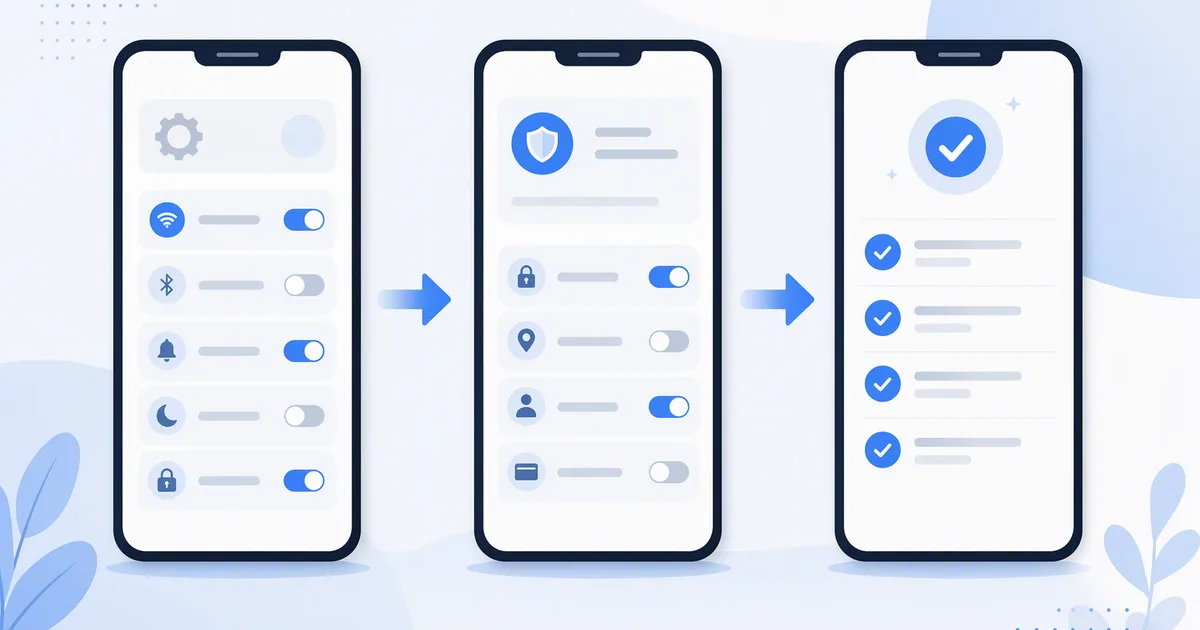
Seven settings in the order I change them on every new Android phone, so the inbox stays quiet from day one and nothing important slips.
How-toGmailIllustration generated for this guide · Sample
Mara LindqvistSampleReviewer · published Oct 30, 2026 · 6 min read
01Day 1: decide which account is in charge
Most people set up a new phone with one Google account and add a second one weeks later, which is how a work thread ends up answered from a personal address. Before you change any setting, decide which account is the default. In Gmail, tap your profile picture and add every address you use now: personal, work, and the business email you check once a week. The account you add first on the phone becomes the default sender for new messages from other apps, so put the one you write from most at the top.
If you run a small business on a custom domain, this is also the moment to check that its mail really arrives in Gmail and not only in a webmail tab you forget to open. Send yourself a test message from another address and reply to it from the phone. If the reply goes out from the right address, you are done with day one.
02Day 1: tame notifications, one account at a time
Gmail's default is to notify you about every message in Primary, for every account. On a busy work inbox that is dozens of buzzes a day, and the usual reaction is to switch notifications off altogether, which is how important mail gets missed. The fix takes two minutes and is per account:
Open Gmail, tap the menu, then Settings, and pick the work account.
Tap Notifications and choose High priority only.
Go back, pick the personal account and keep All, or choose None if you only check it at night.
Under Inbox notifications, turn on Notify for every message only for labels you truly watch.
Give it two days before judging. High priority learns from what you open and reply to, so it gets better as the week goes on. If you wear a smartwatch, its alerts follow the phone's, so this fixes both.
Swipes are the fastest way to triage on a phone, and the defaults are archive on both sides. In Settings, then General settings, then Swipe actions, I set right swipe to Archive and left swipe to Snooze. Snooze is the underrated one: a message that needs an answer on Thursday comes back to the top of the inbox on Thursday morning, so you can stop treating the unread count as a to-do list.
If you prefer Delete over Archive, think twice. Archived mail stays searchable, and the receipt you binned in March is often the one your accountant asks for when invoicing season comes round.
04Day 3: pick an inbox type and stick to it
Gmail offers a Default inbox with tabs, Important first, Unread first and Starred first. I recommend Default with only Primary and Promotions turned on. Social and Updates tabs mostly hide messages you would never miss, but they also hide the odd shipping notice. Turning them off folds those messages into Primary, where search and High priority notifications can see them.
Whatever you choose, give it the whole week. Switching inbox types every day is the fastest way to lose track of what you have already seen. If you run a small business from the same phone, give it its own account rather than a label; separate accounts keep notifications and signatures apart.
05Day 4: build three labels, not thirty
Labels are Gmail's folders, and the temptation on a new inbox is to recreate every folder you had before. On a phone, long label lists are hard to use. I keep three: Waiting, for threads where someone else owes me an answer; Receipts, for anything with a price; and Keep, for the handful of messages I want to find without searching. Everything else is archived and found by search.
If you work with clients, a fourth label for each active project is fine, but delete it when the project ends. A CRM or a project management tool is a better home for the history; Gmail is where the conversation happens.
06Day 5: let filters do the sorting
Filters are created on the web version of Gmail, not in the Android app, so do this once at a computer. Search for a sender you want sorted, open the search options, and choose Create filter. My three filters send invoices and receipts to the Receipts label, skip the inbox for newsletters I read only at weekends, and mark e-signature requests as important so they reach High priority notifications. The filters then work on every device, including the phone.
Keep the list short and review it every few months. A filter you forgot about is one common reason a message seems to vanish.
07Days 6 and 7: clean out the backlog
With settings in place, deal with the old mail. Search for older_than:1y with a large newsletter sender's name, select all, and archive. Then open the storage page in your Google account to see how much space mail is using compared with photos and backups; if your cloud storage is nearly full, search has:attachment larger:10M and remove the biggest old attachments first. If you pay for extra cloud storage, this is a good moment to check whether you still need it.
Finally, set a weekly habit: Friday afternoon, open the Waiting label and chase anything older than a week. It is the step that keeps the inbox small after the setup glow fades.
The takeaway
Week one is about defaults, not discipline: one account in charge, notifications per account, swipes that snooze, a short label list and three filters. Do them in that order and the inbox stays quiet from the first day.
Our full Gmail review covers how the app holds up over a normal working week, including search, summary cards and what it still does badly. The button below opens it.
AppDigest Weekly is independent and not affiliated with Google LLC. This guide reflects the reviewer's own setup; menus can differ by device and version.
 How-toGmail
 CompareIHG One Rewards
 TipsGoodreads
 Best picksAgoda
 How-toVLC UWP
 How-to7-Zip
 Best picksProton Mail