Windows apps: Store picks and desktop tools
Three Windows apps this issue: VLC from the Microsoft Store, 7-Zip, which has no store listing, and PowerToys. Store apps get a store button; desktop tools get a Google search for the developer's own site.
3 apps this issue · Microsoft Store, winget and Chocolatey facts
See the top pickThis week on Windows
Windows apps in our catalog
VLC UWPWindowsOur top pickThe Store edition of VLC: plays almost any file, skips discs.
 7-ZipWindowsNew in our catalogFree archiver for ZIP, 7z and RAR; no store listing.
- Microsoft PowerToysWindowsNew in our catalogFree power-user utilities: window layouts, colour picker, file tools.Not built in this prototypeSample
Guides for Windows
- How-to · VLC UWPAdd subtitles to any video in VLC on WindowsLoad a subtitle file, fix the timing and pick a readable size.
- How-to · 7-ZipPassword-protect a folder with 7-Zip before you email itAES-256 in three clicks, and how to share the password safely.
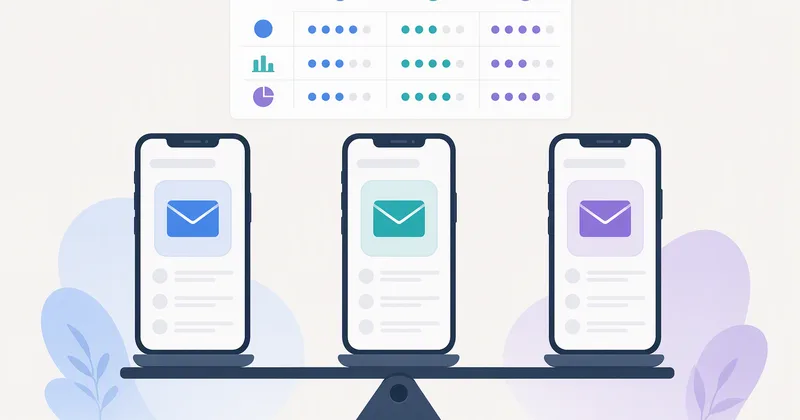 Compare · GmailGmail vs Outlook vs Proton Mail: which inbox fits your weekSearch, privacy, calendars and business email after a week with all three.
- Best picks · Proton MailBest email apps for Android, from business email to private mailOur shortlist for work, privacy and juggling several accounts.
 CompareGmail
 Best picksProton Mail
How we cover Windows
Windows software comes from more places than phone apps, so we are strict about where buttons go. If an app has a Microsoft Store listing, the button opens that listing and the facts come from the Store: publisher, rating, category, price and the date the listing last changed. If a tool has no store listing, such as 7-Zip, we read its facts from the winget and Chocolatey package registries, which track the developer's own releases, and the button opens a Google search for the developer's official page. We never link to a file on a third-party site, and we don't show screenshots for software without a store listing, because we cannot vouch for where they came from.